All the Bits You Get to Play With
Your Logo
Pop your logo right into the middle. PNG, JPG, SVG, and WebP files all work.
Your Own Colors
Choose any color for the dots and the background so it matches your look exactly.
Gradients
Blend two colors in a straight line or out from the center, and tilt the angle however you like.
See-Through Background
Switch the background off and your code drops neatly onto whatever you're designing.
Dot Shapes
Squares, rounded, dots, classy, classy rounded, extra rounded — go with whatever feels right.
Corner Shapes
The three big corner squares can be square, round, or softly rounded.
Corner Centers
The little square inside each corner can be square or round, and you can color it on its own.
Borders & "Scan Me" Labels
Wrap your code in a colored frame and add a short caption above or below it.
What the Parts of a QR Code Are Called
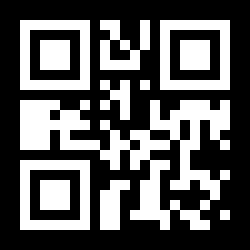
Ever looked at a QR code and wondered what all the little pieces are called? Here's a plain-English rundown — handy when you're tweaking the look to match your brand:
- The dots
- The little repeating shapes that fill the body of the code. They're what hold your link. The "Dots" control is the one that changes how they look.
- The corner squares
- The three big squares in the corners that help a phone find and read the code. The "Corner frames" control changes their shape.
- The corner centers
- The smaller square sitting inside each of those big corners. The "Corner centers" control reshapes them, and you can give them their own color too.
Easy Ways to Keep Your Custom Code Scannable
- Keep the contrast strong. Dark dots on a light background is the safe combo. A pale code on a busy background can confuse some phones.
- Turn error correction up when you add a logo. The highest setting, "H", can shrug off about a third of the code being covered — which is just the room a logo needs.
- Keep your logo on the small side. Aim for about a third of the code or less. Go bigger and scans start to get missed.
- Print it at least 2 cm wide (about 0.8 in). Tiny works up close, but for posters, signs, and handouts, 2 cm is a comfy minimum.
- Test it on a couple of phones first. iPhones and Android phones read codes a little differently, so scan with both before you send a big run to the printer.
Questions People Often Ask
How do I put my logo in the middle of a QR code?
It's just a quick upload. Pick your logo file — PNG, JPG, SVG, or WebP all work — and it drops straight into the center for you. The dots behind it tuck out of the way so nothing looks crowded. One small tip: switch the error-correction setting to its highest level when you add a logo, and your code will keep scanning happily.
What dot and corner styles can I choose from?
Plenty. For the little dots that make up the body of the code, you can go with classic squares or soften them into rounded, dots, classy, classy rounded, or extra rounded. The three big corner squares get their own look too — square, round, or rounded on the outside, and square or round for the small square tucked inside each one.
Can my QR code have a see-through background?
Yes. Flip on the transparent-background option and your PNG and SVG downloads come out with no background at all, so the code sits neatly on top of whatever you're designing. Just know that JPG files can't be see-through, so a JPG download will come out on plain white instead.
Can I match my brand colors or use a gradient?
Absolutely. Pick any solid color you like, or turn on gradient mode to blend two colors together in a straight line or out from the center. You can even color the corner squares on their own, separate from the rest of the dots, so the whole thing lands right on your palette.
Can I add a frame or a "scan me" label?
You can. Turn on the frame options to wrap your code in a colored border, add a short caption above or below it, or do both. The caption takes any little bit of text you want and prints in a clear, bold font that's easy to read.
Will all this styling stop my code from scanning?
Not if you keep a few easy things in mind: leave plenty of contrast between the dots and the background, and don't let a logo cover too much of the code. Bump the error-correction setting to its highest level and keep any logo to about a third of the code or smaller. Then give it a quick test scan with a phone or two before you print a big batch.
Will my custom QR code ever stop working?
Nope. The codes you make here are static, which means the link is written right into the pattern itself. As long as that link still goes somewhere, your code keeps working — no expiry date, no watermark, and nothing on our end that could ever switch it off.